Lots of updates in this version! Map your routes and elevation profiles of single sport workouts, bricks and races! Directly integrates into BT's training log to assign routes to workouts.
To go to your route manager, click on: Training Log --> My Routes
What does mapping your routes do?
Selecting a route when you log a workout will automatically enter the distance information
Allow you to generate 'Route History' reports
See the elevation profile of routes your log
Creating a route
Go to 'My Routes' and click on the button.
Put in your location that you want to map (city/state) for the map to autocenter.
How to create a route:
Go to 'My Routes' and click on the button.
Click on either the swim, bike or run icon to activate that sport to map. Then start clicking points! That's it.
Create a 'brick' or 'race' by clicking on another tri-sport icon and continue plotting.
Click on 'Save' and enter some geographical information...you're done.
Public and private routes. You can access other members public routes by clicking on a route in their log and then 'View Public Routes' link. You can also search public routes in your route manager. *NOTE, if you log a public route, being the internet, it would probably not be a good idea to give it any type of 'home' label.
Route Manager. Create and manage routes here. Additional swim, bike, run, brick and race filters by name, date created and frequency used.
GPX Uploading. You can also upload GPX files to create routes. (see below)
Bricks and Races. Your routes will be saved as 'swim, bike, run, brick (if you log two or more sports) and 'race route' if you tag it as a race when saving it. Depending on the designation, it will be in the appropriate dropdown in the logging screen to select for a workout.
Elevation Graphs. See Elevation Profile graphs of all routes.
Point-by-point analysis. Distance and elevation change data from prior point in a hover box.
Distance Markers. Color-coded distance markers for every mile/km or every 100yards/meters. Toggleable.
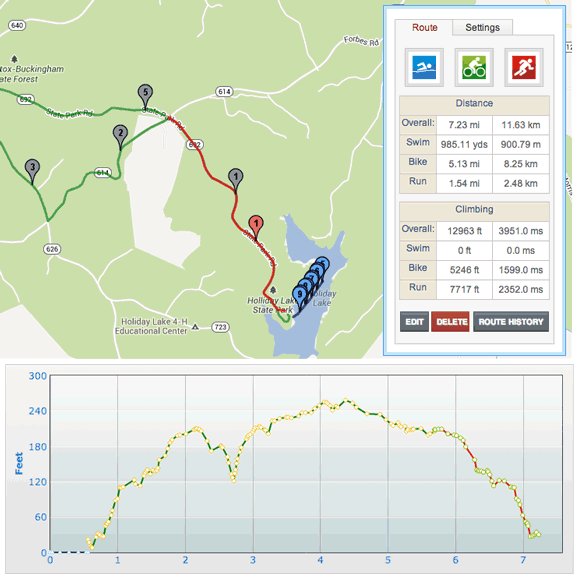
Example triathlon race map
Loop and Go Home buttons:
Imagine that you ride a route in the shape of the letter P starting at the bottom. When you return to the point where the loop closes (point 2 below), click on that point. The Loop and Go Home buttons will become active. Click on Loop to make a right turn and go around the loop again. Click on Go Home to make a left turn and return to the starting point.
Keep your friends and family informed!
Another use for this: Before going out on a ride or a run, leave the route up on your monitor with the distance markers active. This will let people at home know where you intended to be and in what direction you were headed.
Upload your routes from other sites?
Provided that the other site has an 'export to GPX' feature, this should be relatively easy.
How to upload a GPX file?
Go to 'create a new route' in your 'route manager'
In the 'Upload from GPX File' box, select your file and hit 'go'.
A dialog box will open asking you to select a sport to save it as. Your route should then show-up on the map.
Click 'Save route' and enter the route information.
Important GPX uploading notes
*Files can contain Trackpoints, Routes or Waypoints. Waypoints will not be processed. There can only be one Track segment per file.
*If there's a problem with the upload, you will receive an alert stating that the upload failed and to contact us.
*In order to be uploaded, a route should consist of only one segment which can be done when you create the file.
Elevation graph not working?
Sometimes the USGS database goes offline, in that event you will not see any 'climb' or 'elevation graph' data. You can still save your route though. When the USGS comes back online, go into the Edit 'E' mode, pressing this will reset the elevation values for all points, and the displayed values, and reset the elevation profile graph.
Re-edit saved routes Click on the 'Edit' button in your route page and you'll be brought to the map page where you can edit the route as if you were creating it from scratch.
Change route sport Say you created a long route and realized that you created it as a run, but meant to create it as a bike. You can change that now at the Edit --> Save box. This only applies to routes with one leg.
Draggable markers in route creation or editing When creating or editing a route, you can click and drag markers. The Distance value will update as you drag, the Elevation values and profile will update when you drop the marker. This is nice for testing different scenarios for a route eg. "what if I turned left here instead". It's also useful if you have OCD and absolutely have to see the markers lined up just so.
Reset elevation button (if USGS is down or a rogue point) Click on the map 'Edit' button then the 'Settings' tab and pressing 'Reset Elevation' will reset the elevation values for all points, and the displayed values, and reset the elevation profile graph. If you have a route saved with 0 for overall climb, try this.
Better handling of the USGS elevation service being down. If this happens your time spent trying to create the route doesn't get wasted as you can reset your route later.
*Note, depending on the number of points in your route, this can take from a few seconds to a few minutes to recalculate the data. A common side-effect is a temporary slowing down of any other browsers you have open - be patient!
THIS WORKS MUCH FASTER if you turn off the elevation graph before reseting.
Directions: The front most tab accepts directions for that point eg "Turn Left On Main St." Once directions are entered, a button called 'Cue Sheet' will become available on the left side of the window.
Click on the button and a new window with the directions formatted for printing will pop up.
In View mode, the directions are displayed in the balloon. Any points with associated directions or images will be black to make them easily identifiable.
Images: In the balloon described above, the 2nd tab accepts a url for an image in create/edit mode and displays it in view mode.
View single legs on multisport routes When viewing or creating a route with more than one leg, a control will appear that lets you view and see the elevation profile for distinct legs. This also results in slightly better performance when scrolling/zooming. Etc.
Distinct, colored routes in the map and elevation graph. You can now easily see the start and end points for different sports in the Elevation profile as their color should match-up with the sports.
Less clutter with distance markers Higher zoom levels result in fewer markers so it's easier to read.
Route viewing - points or no points You can view a route in 2 modes: Points or No Points. This is governed by clicking on the 'Settings' tab when viewing your routes. The default is No Points. This was done for performance reasons. It's much faster to load a map and just display the one line with no markers and sometimes you just want to see the line.
Search and view public routes When you are in 'My Routes', hovering over the 'Route Manager' button and selecting 'Public Routes' will allow you to view all publics routes.
Search swim, bike, run, brick or race routes. Filter by country, state or city. Sortby name, location, elevation, distance.
Save a public route or race as your own Have you found a public route or race from the public search that you would like to have as your own route without replotting it? You will now notice the 'Save' button in every public route.
*UK BT'ers and possibly others will have to access their country via 'zooming out' to the world view first or if that doesn't work, by searching another country first to get a map, then zooming back in and navigating to the UK. This is due to contractual reasons that the Google Maps API doesn't allow searches for addresses in the UK.
Rating Click on star to vote
71416 Total Views | 40 Views last 30 days | 10 Views last 7 days


 login
login

 View profile
 Add to friends
 Go to training log
 Go to race log
 Send a message
 View album
 CONNECT WITH FACEBOOK
Route Mapping with Distance and Elevation Mapping
Lots of updates in this version! Map your routes and elevation profiles of single sport workouts, bricks and races! Directly integrates into BT's training log to assign routes to workouts.
What does mapping your routes do?
Creating a route
Go to 'My Routes' and click on the button.
Put in your location that you want to map (city/state) for the map to autocenter.
How to create a route:
Other Features:
*NOTE, if you log a public route, being the internet, it would probably not be a good idea to give it any type of 'home' label.
Example triathlon race map
Loop and Go Home buttons:Imagine that you ride a route in the shape of the letter P starting at the bottom. When you return to the point where the loop closes (point 2 below), click on that point. The Loop and Go Home buttons will become active. Click on Loop to make a right turn and go around the loop again. Click on Go Home to make a left turn and return to the starting point.
Keep your friends and family informed!
Another use for this:
Before going out on a ride or a run, leave the route up on your monitor with the distance markers active. This will let people at home know where you intended to be and in what direction you were headed.
Upload your routes from other sites?
Provided that the other site has an 'export to GPX' feature, this should be relatively easy.
How to upload a GPX file?
Important GPX uploading notes
*Files can contain Trackpoints, Routes or Waypoints. Waypoints will not be processed. There can only be one Track segment per file.
*If there's a problem with the upload, you will receive an alert stating that the upload failed and to contact us.
*In order to be uploaded, a route should consist of only one segment which can be done when you create the file.
Elevation graph not working?
Sometimes the USGS database goes offline, in that event you will not see any 'climb' or 'elevation graph' data. You can still save your route though. When the USGS comes back online, go into the Edit 'E' mode, pressing this will reset the elevation values for all points, and the displayed values, and reset the elevation profile graph.
Re-edit saved routes
Click on the 'Edit' button in your route page and you'll be brought to the map page where you can edit the route as if you were creating it from scratch.
Say you created a long route and realized that you created it as a run, but meant to create it as a bike. You can change that now at the Edit --> Save box. This only applies to routes with one leg.
When creating or editing a route, you can click and drag markers. The Distance value will update as you drag, the Elevation values and profile will update when you drop the marker. This is nice for testing different scenarios for a route eg. "what if I turned left here instead". It's also useful if you have OCD and absolutely have to see the markers lined up just so.
Click on the map 'Edit' button then the 'Settings' tab and pressing 'Reset Elevation' will reset the elevation values for all points, and the displayed values, and reset the elevation profile graph. If you have a route saved with 0 for overall climb, try this.
Better handling of the USGS elevation service being down. If this happens your time spent trying to create the route doesn't get wasted as you can reset your route later.
*Note, depending on the number of points in your route, this can take from a few seconds to a few minutes to recalculate the data. A common side-effect is a temporary slowing down of any other browsers you have open - be patient!
THIS WORKS MUCH FASTER if you turn off the elevation graph before reseting.
Cue Sheet Create/View Screenshot, Cue Sheet Printout Screenshot
When creating or editing a route, click on a point and a balloon will pop up with 2 tabs.
Directions: The front most tab accepts directions for that point eg "Turn Left On Main St."
Once directions are entered, a button called 'Cue Sheet' will become available on the left side of the window.
Click on the button and a new window with the directions formatted for printing will pop up.
In View mode, the directions are displayed in the balloon. Any points with associated directions or images will be black to make them easily identifiable.
Images: In the balloon described above, the 2nd tab accepts a url for an image in create/edit mode and displays it in view mode.
When viewing or creating a route with more than one leg, a control will appear that lets you view and see the elevation profile for distinct legs. This also results in slightly better performance when scrolling/zooming. Etc.
You can now easily see the start and end points for different sports in the Elevation profile as their color should match-up with the sports.
Higher zoom levels result in fewer markers so it's easier to read.
You can view a route in 2 modes: Points or No Points. This is governed by clicking on the 'Settings' tab when viewing your routes. The default is No Points. This was done for performance reasons. It's much faster to load a map and just display the one line with no markers and sometimes you just want to see the line.
 Search and view public routes
Search swim, bike, run, brick or race routes.When you are in 'My Routes', hovering over the 'Route Manager' button and selecting 'Public Routes' will allow you to view all publics routes.
Filter by country, state or city.
Sortby name, location, elevation, distance.
Have you found a public route or race from the public search that you would like to have as your own route without replotting it? You will now notice the 'Save' button in every public route.
Report any issyes to the:
Training Log Forum
*UK BT'ers and possibly others will have to access their country via 'zooming out' to the world view first or if that doesn't work, by searching another country first to get a map, then zooming back in and navigating to the UK. This is due to contractual reasons that the Google Maps API doesn't allow searches for addresses in the UK.
Click on star to vote